
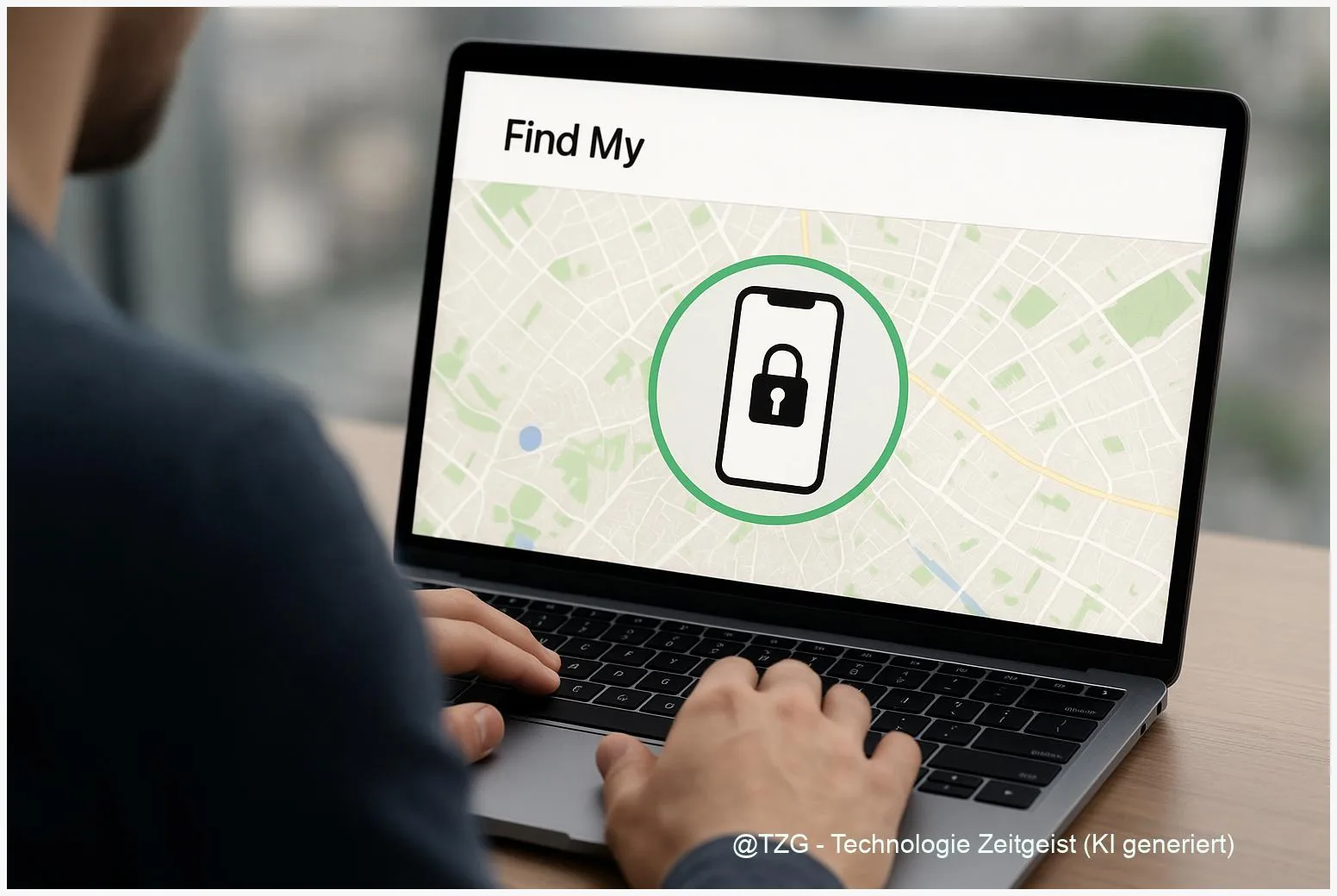
Lost your phone and need quick, safe actions? This guide shows how to find my lost iPhone with Apple Find My, and how to locate an Android with Google Find Hub (Find My Device), then remotely lock it or erase it if needed. You’ll learn what each option does, which requirements must already be enabled, and the exact steps from a second device or a browser—so your data stays protected even if the phone doesn’t come back.
Introduction
A missing phone is rarely just about the hardware. It’s your messages, photos, banking apps, tickets, authenticator codes, and saved logins. Sometimes the phone is simply under a couch cushion. Sometimes it’s left in a taxi, a gym locker, or a café—and you only notice when you need it for a payment or a login.
The good news: modern iPhones and Android phones can often be located from another device, and you can also lock them remotely or wipe them as a last resort. The bad news: these tools work best if they were set up before the phone went missing.
The steps below focus on Apple Find My and Google’s Find Hub (also known as Find My Device). You’ll start with the safest actions (locate and ring), then move to stronger protection (lock), and only then to the irreversible option (erase).
Basics and Overview: what “find, lock, erase” really means
Both ecosystems offer three core actions when a phone is missing: locate, secure, and erase. Apple provides this via the Find My app and iCloud’s Find Devices website. Google provides it via Find Hub (commonly called Find My Device) in the Find Hub app or at android.com/find.
Locate shows the phone’s current or last known location on a map. Accuracy depends on GPS, Wi‑Fi, and mobile networks. Ring makes the phone play a loud sound—useful if it’s nearby.
Treat “lock” as the default safety move: it protects your data without destroying evidence or access options.
Lock (Apple “Mark as Lost”, Google “Secure device”) puts a stronger protection layer on the phone and can show a message with contact details on the screen. Erase triggers a factory reset remotely. That protects your personal data, but it’s hard to undo and typically stops live tracking after the wipe.
| Option or Variant | Description | Suitable for |
|---|---|---|
| Find & ring | Locate on a map and play a loud sound for a short time. | Phone likely nearby (home, office, car, backpack). |
| Lock (Lost Mode / Secure device) | Remote lock + optional on-screen message and contact number. | Phone might be in public, you want privacy protection fast. |
| Erase (factory reset) | Deletes data remotely; should be the last step. | High risk of data exposure or phone clearly not coming back. |
Preparation and Prerequisites: what must already be enabled
The most common frustration is simple: the phone can’t be found because the feature wasn’t turned on earlier. Take two minutes to check these prerequisites now (and share them with family members).
For iPhone (Apple Find My), you typically need Find My enabled for the device and an Apple ID you can sign into. For Android (Google Find Hub / Find My Device), you need a Google account on the phone, the device visible to your account, and location services plus the find service enabled.
- Know your account login (Apple ID / Google Account) and have access to its two-step verification method.
- Screen lock set (PIN, password, or biometrics). Remote locking is far less helpful without a solid lock.
- Location services enabled on the phone. Without it, map results may only show a rough or last known location.
- Internet connection helps. If the phone is offline, your lock/erase request can be queued and applied the next time it connects.
- Backups enabled (iCloud Backup / Google backup). This doesn’t find the phone, but it makes recovery far less stressful.
If you want a deeper hardening checklist, TechZeitGeist has a general guide on enabling theft protection on iPhone and Android (useful to do before anything goes wrong).
Step-by-Step Instruction: locate, lock, or erase (iPhone and Android)
The safest order is: locate and ring first, then lock, and only then consider erasing. Use a trusted device (your laptop, a family member’s phone, or a work computer you trust). Avoid signing in on public PCs if you can.
- Open the official tracking service.
- iPhone: open the Find My app on another Apple device, or sign in on iCloud Find Devices.
- Android: open Google’s Find Hub / Find My Device on another Android device, or sign in at android.com/find.
- Sign in with the same account used on the missing phone. You should see a list of devices. Select the missing one.
- Check the location and the status. Look for indicators like “online/offline” and a timestamp (“last seen”). If it’s at home, use ring immediately.
- Make it ring.
- Apple: choose the device and use the option to play a sound.
- Google: use “Play sound”. Google notes the phone can ring for about 5 minutes, even if it was on silent.
- Lock it with a message (recommended in public spaces).
- Apple: select the device and choose Mark as Lost (Lost Mode). Add a phone number or message like “This phone is lost. Please call …”.
- Google: choose Secure device and add a contact number/message. This helps honest finders return it without unlocking anything.
- Decide on remote erase only if necessary.
- Apple: choose Erase This Device. Apple notes that Activation Lock can remain active if Find My is enabled, which helps prevent someone else from setting it up.
- Google: choose the option to erase (factory reset). Google notes this removes data on the device and you typically can’t keep tracking after the wipe.
- After locking/erasing, secure your accounts. Change your Apple ID or Google password if you suspect theft, and review account sign-ins. Also consider contacting your carrier to block the SIM.
If everything worked, you’ll see the device status update (for example, “Lost Mode enabled” or “Erase pending”). If it’s offline, don’t panic—requests can apply once the phone reconnects.
Tips, Troubleshooting, and Variants
The map shows an old location. That usually means the phone is offline (battery dead, airplane mode, no signal) or location is disabled. Keep the phone in Lost Mode / Secure device anyway so it locks immediately when it comes online.
You don’t see your phone in the device list. Common causes: you’re signed into the wrong account, the phone never had Find My / Find Hub enabled, or it has been wiped and removed. Double-check the email address and try again in a browser session where you can clearly see the account name.
Ring doesn’t help. Use ring mainly for “nearby” situations: home, office, car, or a friend’s place. In public, switch quickly to lock + message. That gives a finder a way to contact you without exposing your data.
Be careful with erase. Remote erase is the strongest privacy move, but it’s also the least reversible. If you still have a realistic chance of recovery (for example, you know it’s in a hotel), lock first and wait.
Variants you can use if you’re not alone. If you share devices in a family group, it may be easier to use another trusted family device with the right account already signed in. TechZeitGeist also has a practical overview on what to do when your phone is lost, step by step (a broader checklist beyond the core buttons).
Safety note: Avoid meeting a stranger alone to recover a device. If the location points to a private address and you suspect theft, consider involving local authorities and your mobile provider rather than confronting anyone.
Conclusion
A lost phone is stressful, but you usually have clear, effective options. Start by locating and ringing it with Apple Find My or Google Find Hub. If the phone isn’t safely within reach, lock it and add a short message so a finder can contact you without accessing your apps. Reserve remote erase for situations where you must protect sensitive data and recovery is unlikely. The biggest takeaway is simple: these features work best when they’re enabled in advance—so it’s worth checking your settings today.
Have you already tested your Find My / Find Hub setup on a second device? Share what worked (or what confused you) so others can avoid the same stress.




Leave a Reply